Building a Custom PC: A Step-by-Step Guide
Learn how to build your own custom PC with our detailed step-by-step guide, from selecting components to assembly and testing.
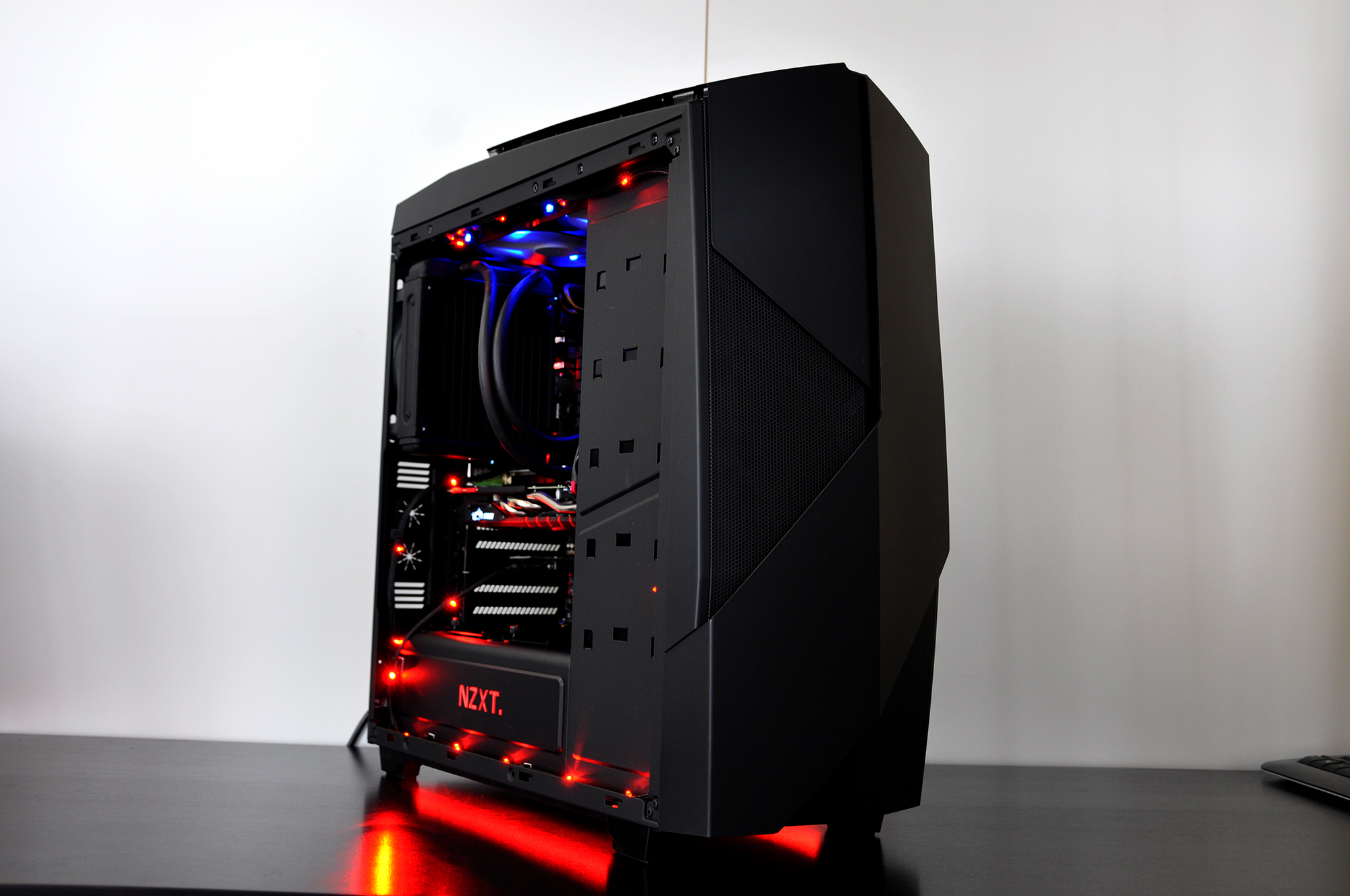
Understanding the Basics
Building a custom PC can be an incredibly rewarding experience, offering both flexibility and performance tailored to your specific needs. Before diving into the assembly process, it's crucial to understand the basic components that make up a computer. The core elements include the CPU (Central Processing Unit), GPU (Graphics Processing Unit), RAM (Random Access Memory), motherboard, storage devices like SSDs or HDDs, and the power supply unit (PSU). Each component plays a vital role in the overall performance of your PC. Familiarizing yourself with these parts, their functions, and compatibility is essential. Additionally, consider your primary use case—whether it's gaming, content creation, or general productivity—as this will influence your choice of components. Planning your build around your needs ensures that you get the best value and performance for your investment.
Choosing the Right Components
Selecting the right components is a critical step in building a custom PC. Start with the CPU, as it determines the motherboard and other components. For gaming, a higher clock speed and core count are beneficial, while for content creation, more cores might be preferable. The GPU is crucial for gaming and graphic-intensive tasks. Research the latest models and compare benchmarks to find one that suits your budget and performance needs. RAM is another important factor; generally, 16GB is a good starting point for most users, but more may be needed for heavy multitasking or professional applications. When it comes to storage, SSDs offer faster boot times and data access speeds compared to traditional HDDs. Finally, ensure that the PSU provides sufficient wattage and has the necessary connections for your components. Compatibility and future-proofing should guide your decisions.
Assembling the Motherboard
Once you've gathered all your components, it's time to start the assembly process, beginning with the motherboard. Place the motherboard on an anti-static mat or its box to prevent static electricity damage. Install the CPU by carefully lifting the socket lever and aligning the CPU with the socket, ensuring it fits snugly without forcing it. Next, attach the RAM sticks into the designated slots; refer to your motherboard manual for the correct configuration, especially if using dual-channel memory. Installing the M.2 SSD at this stage is also recommended, as it's easier to access before the motherboard is mounted in the case. Once these components are in place, secure the motherboard inside the case using the standoffs and screws provided. This foundational step sets the stage for the rest of your build.
Installing the Power Supply Unit
The power supply unit (PSU) is the heart of your custom PC, providing the necessary power to all components. Begin by installing the PSU into the designated compartment in your PC case. Ensure the fan is oriented correctly, typically facing downwards if there's a vent at the bottom of the case. Secure the PSU with screws, making sure it's firmly in place. Before connecting cables, plan your cable management strategy to maintain airflow and aesthetics. Use the appropriate cables to connect the PSU to the motherboard, GPU, and other components. Modular PSUs allow you to use only the cables you need, reducing clutter. Double-check all connections to ensure they're secure, as loose cables can cause performance issues or even damage components. Proper PSU installation and cable management are crucial for a clean, efficient build.
Attaching Storage and Peripherals
With the core components installed, it's time to add your storage devices and any additional peripherals. For SSDs and HDDs, locate the drive bays in your case. Securely mount the drives using screws or tool-less brackets, depending on your case design. Connect the drives to the motherboard using SATA cables and power cables from the PSU. For optical drives or additional accessories, follow similar steps. If your build includes custom cooling solutions or additional fans, now is the time to install them, ensuring they're oriented to optimize airflow. Connect any front panel connectors from the case to the motherboard, including USB ports, audio jacks, and power buttons. This stage brings your PC closer to completion, ensuring that all essential components and peripherals are integrated.
Installing the Graphics Card
The graphics card (GPU) is often one of the last components to be installed due to its size and potential obstruction of other components. Begin by removing any expansion slot covers on the back of the case that align with your GPU. Carefully insert the GPU into the appropriate PCIe slot on the motherboard, ensuring it's fully seated. Secure the GPU with screws to prevent movement. Connect the necessary power cables from the PSU to the GPU; these are typically 6-pin or 8-pin connectors, depending on your card's requirements. Ensure there's adequate clearance and airflow around the GPU to prevent overheating. Installing the GPU is a pivotal step, especially for gaming or graphic-intensive tasks, as it significantly impacts performance.
Performing Initial Boot and Setup
With all components installed, it's time to perform the initial boot. Connect your monitor, keyboard, and mouse to the PC. Power on the system and enter the BIOS by pressing the designated key during startup, often Delete or F2. Check that all components are recognized, including CPU, RAM, and storage devices. Set the correct boot order, prioritizing your installation media if you're installing an operating system. Save your settings and exit BIOS. If everything is functioning correctly, your PC should boot to the installation screen of your OS. Follow the on-screen instructions to install the operating system. Once installed, download and install the latest drivers for your hardware to ensure optimal performance. This initial setup phase is crucial for a smooth, stable system.
Testing and Troubleshooting
After successfully booting your custom PC, it's important to conduct thorough testing to ensure stability and performance. Use software tools to monitor temperatures and perform stress tests on the CPU and GPU. Programs like Prime95 or FurMark can be used to test stability under load. Check for any unusual noises or issues with fan operation, as these can indicate potential problems. If you encounter any errors or instability, revisit your connections and ensure all components are properly seated. It's also wise to keep an eye on driver updates and BIOS updates that may improve system performance or compatibility. Testing and troubleshooting are ongoing processes that help maintain the longevity and efficiency of your custom PC, ensuring it meets your expectations.